kage
kage
mylens.ai
Design analysis
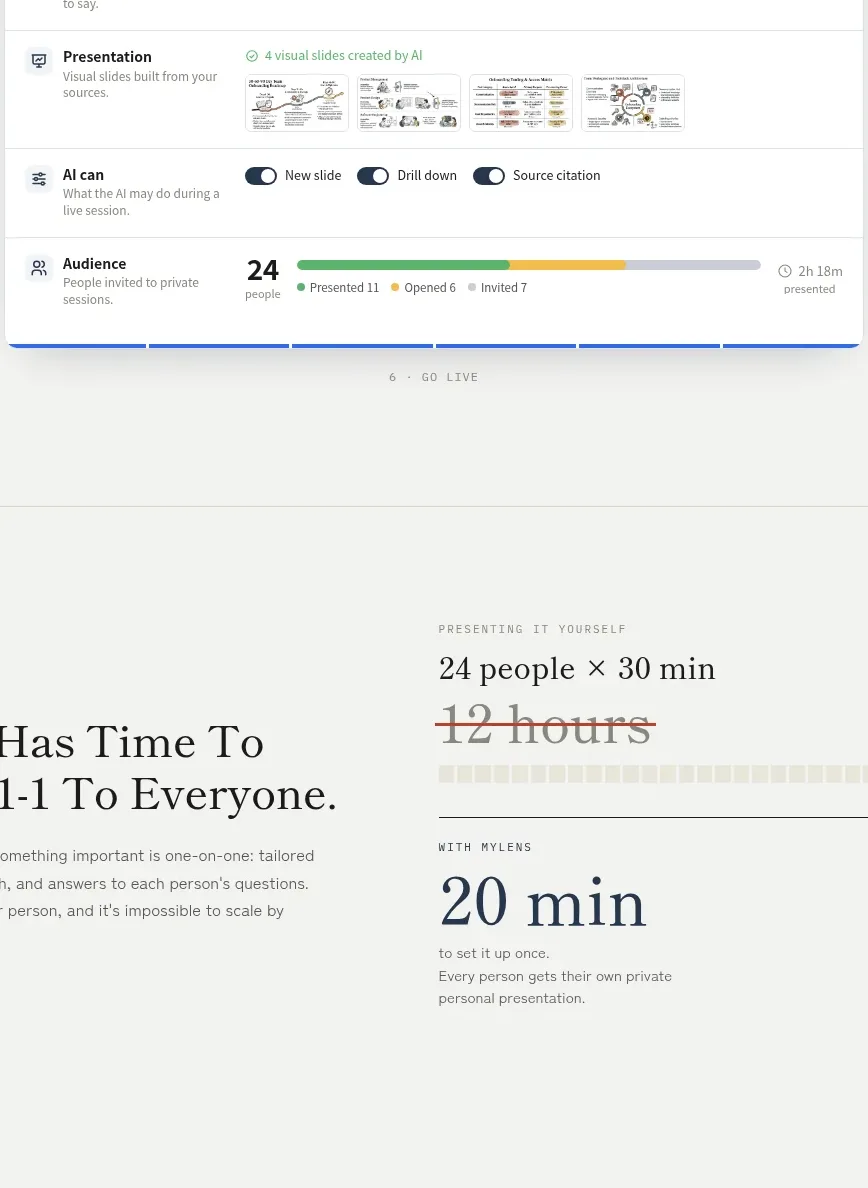
A centered product preview demonstrates how a user configures the experience in one place. Layered rows, controls, and a bottom progress indicator make the setup feel tangible without overwhelming the page.
Prompt preview
## Reference images

Study these alongside the description below: hierarchy, rhythm, spacing, colour. Build for the product you are asked about, using this design language.

- Component: https://kage-design-assets.t3.tigrisfiles.io/components/mylens/1ccd9fd0-0589-4047-afdb-6c3bf2f362f8-1792389753-5.webp
- Full page it was cut from: https://kage-design-assets.t3.tigrisfiles.io/screenshots/mylens/1ccd9fd0-0589-4047-afdb-6c3bf2f362f8-1792389647544-full.webp
- Component on Kage: https://kage.design/component/mylens-card

## Before you start
Ask what the user's setup flow contains and which configuration choices are most valuable to show. Design an original preview card based on those answers.

Create a centered, wide workspace-preview card beneath a short centered heading. The card should resemble a polished setup screen with a compact top bar, several horizontal configuration rows, source or knowledge chips, a presentation/output preview, toggle controls, and a final audience/progress row. Keep it as a believable static product mockup, not a full working dashboard.

Design rules:
- Use a white surface on an off-white page, 10–14px radius, a 1px border around `#dfe1dc`, and a soft shadow.
- Use sans-serif UI typography at 11–14px, bold row labels, muted helper text, and restrained pill controls.
- Separate rows with thin rules; use navy, blue, and green only for active states and progress.
- Use 48–64px horizontal page padding within the mockup and a clear top-to-bottom hierarchy.
- On small screens, allow horizontal scrolling inside the preview rather than making text microscopic.

Never:
- Never use logos, product names, copy, illustrations, or imagery from the reference.
- Never reproduce the exact workspace labels, toggle names, or UI screenshot.
- Never make the preview more visually dominant than the section's message.