 kage
kage
sponkly.com

Design analysis
This section combines two mobile-oriented use cases with a short three-step onboarding explanation and clear app-oriented hierarchy.
Prompt preview
## Reference images

Study these alongside the description below: hierarchy, rhythm, spacing, colour. Build for the product you are asked about, using this design language.

- Component: https://kage-design-assets.t3.tigrisfiles.io/components/sponkly/bd3f409f-e542-449e-8bba-263211d90a1c-1792735457-6.webp
- Full page it was cut from: https://kage-design-assets.t3.tigrisfiles.io/screenshots/sponkly/bd3f409f-e542-449e-8bba-263211d90a1c-1792735346298-full.webp
- Component on Kage: https://kage.design/component/sponkly-feature-grid-4

## Before you start
Ask me what users need to accomplish on mobile and what the simplest onboarding path is for my product. Ask for the brand direction, then build an original version of this pattern.

Create a centered heading for a pair of mobile workflow cards, followed by two side-by-side cards with device mockups, short headings, descriptive text, and small links. Beneath them, add a compact three-step “how it works” row with numbered circular markers, short titles, and one-sentence explanations. Use a white background, #202020 text, #747474 copy, 1px #ECECEC borders, 14–18px radii, and restrained accent tints behind device visuals.

Use an 8–12 column responsive grid, 24px card gaps, 56–80px section padding, and a clear typographic hierarchy: 30–36px section heading, 18px card headings, 12–14px supporting text. On mobile, stack cards and turn the steps into a vertical timeline or single-column list.

### Never
- Never reuse reference app-store badges, product names, screenshots, logos, copy, or imagery.
- Never imitate the exact device mockups or illustrations.
More components
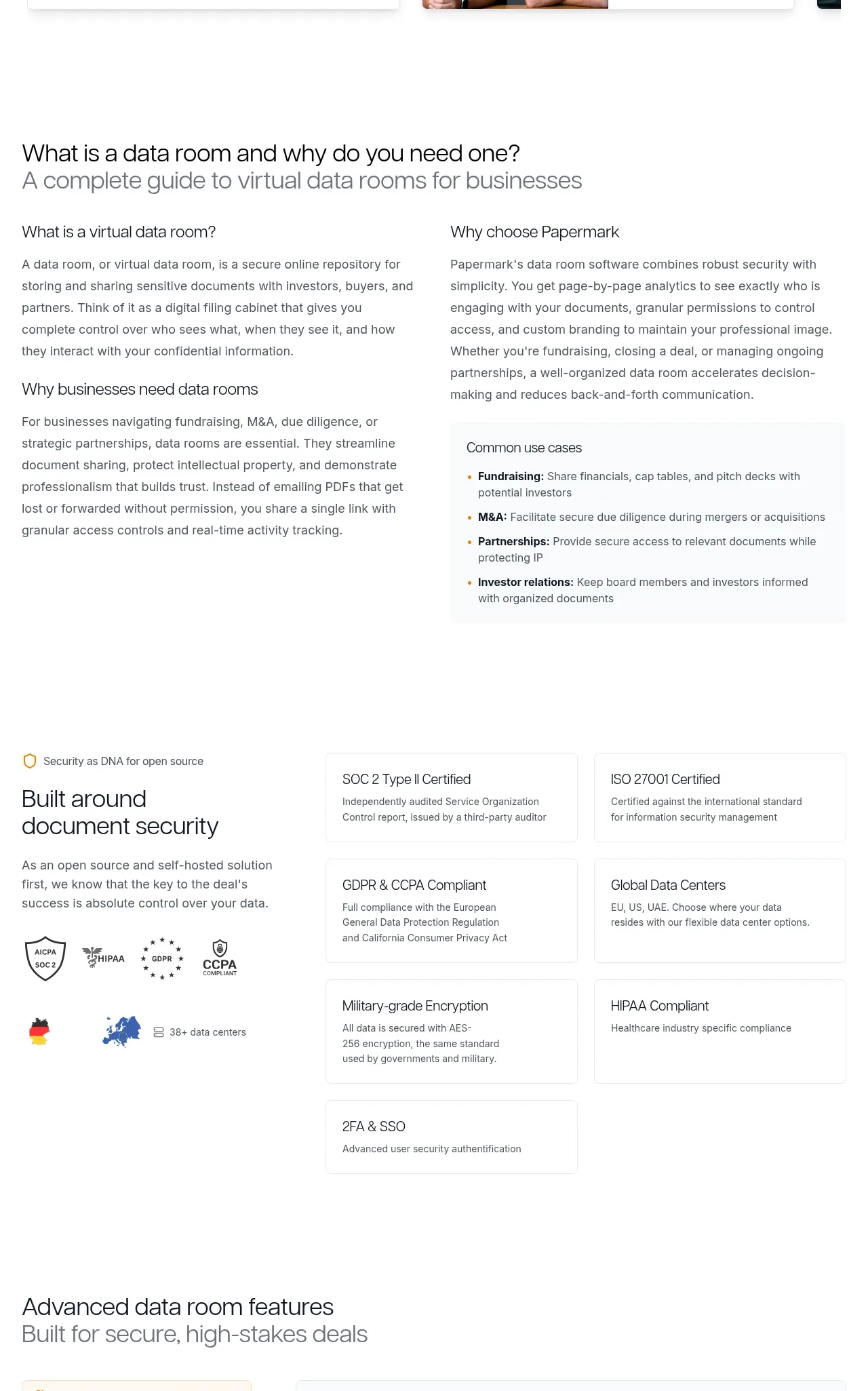
 Data-room education and security overview
Papermark Data Rooms · Feature grid
Data-room education and security overview
Papermark Data Rooms · Feature grid
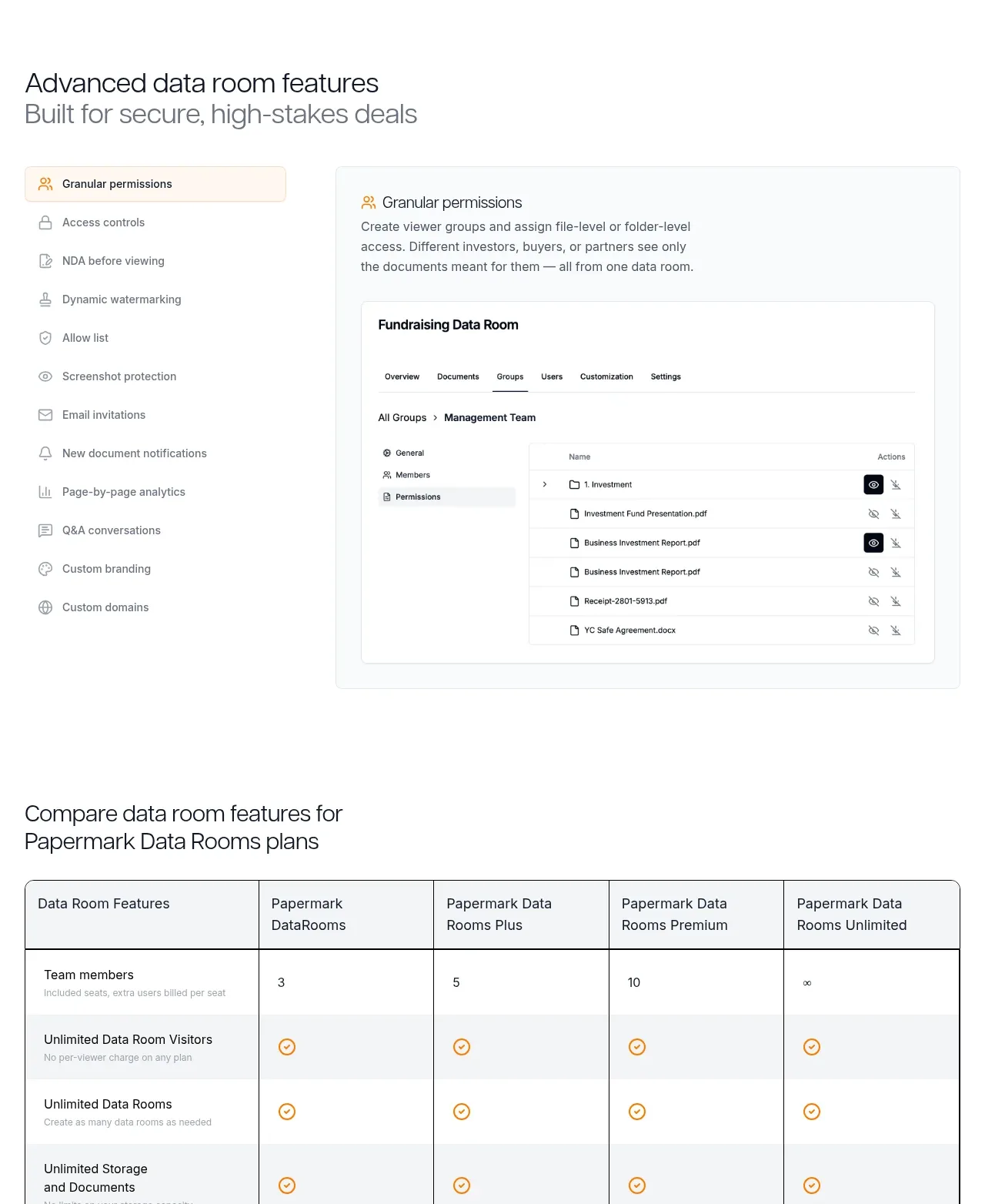 Advanced data-room features
Papermark Data Rooms · Feature grid
Advanced data-room features
Papermark Data Rooms · Feature grid
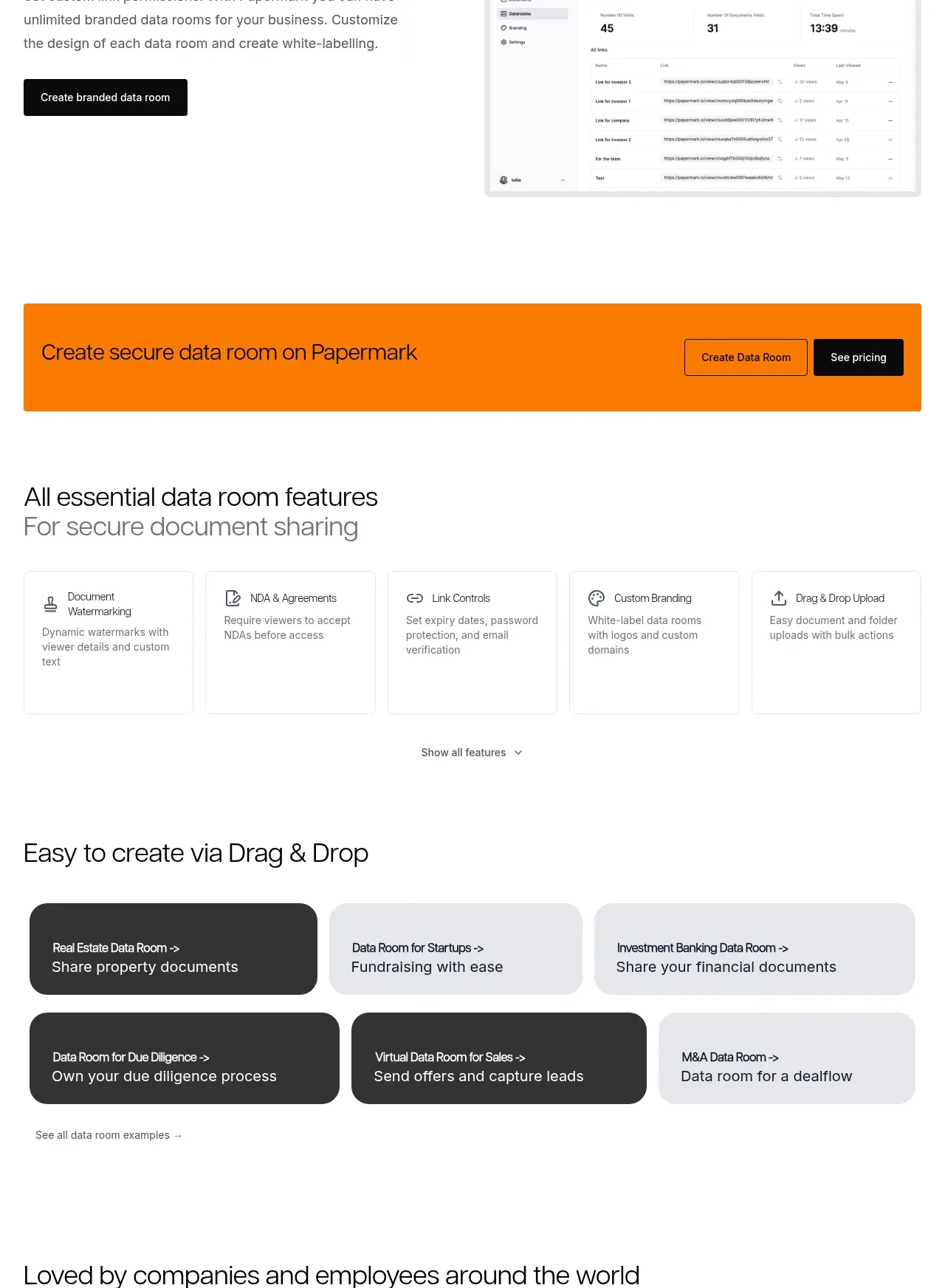 Workflow demonstrations
Papermark Data Rooms · Feature grid
Workflow demonstrations
Papermark Data Rooms · Feature grid
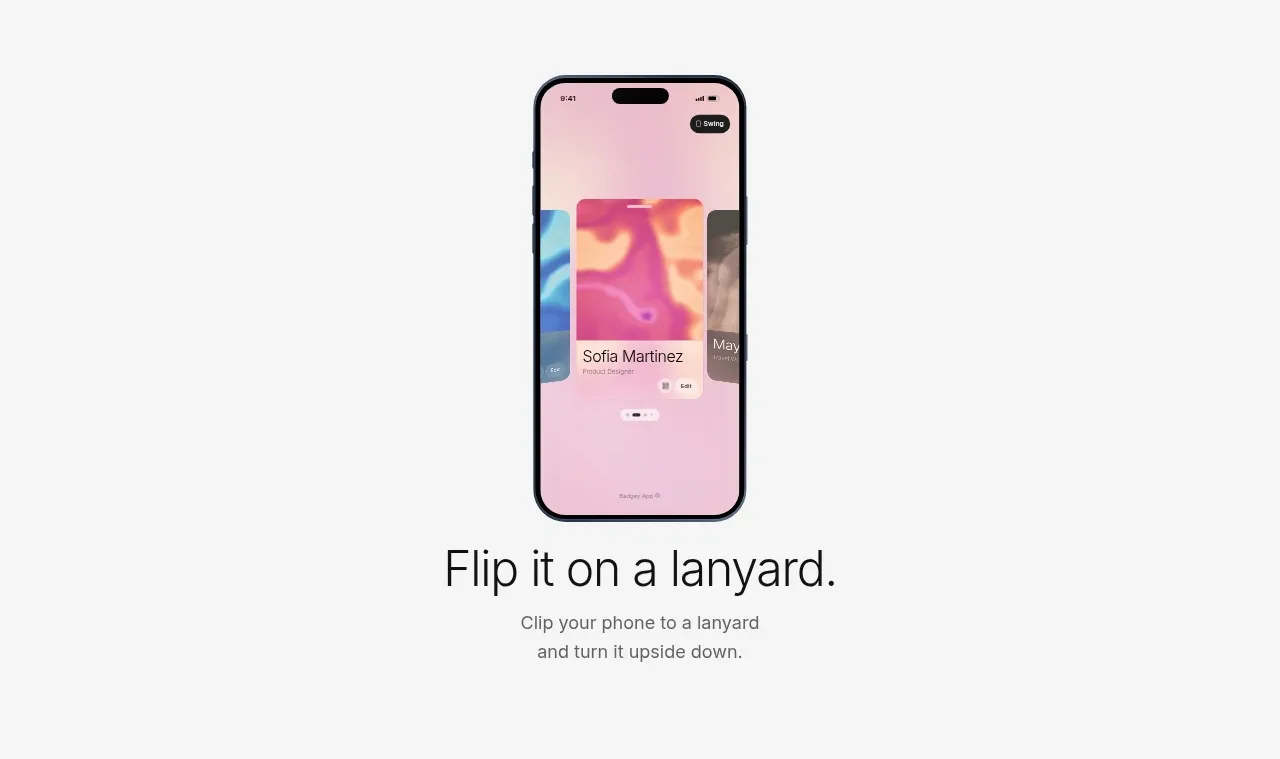
 Lanyard use-case feature
Badgey · Feature grid
Lanyard use-case feature
Badgey · Feature grid

 Problem statement
Clips by Plastic · Feature grid
Problem statement
Clips by Plastic · Feature grid
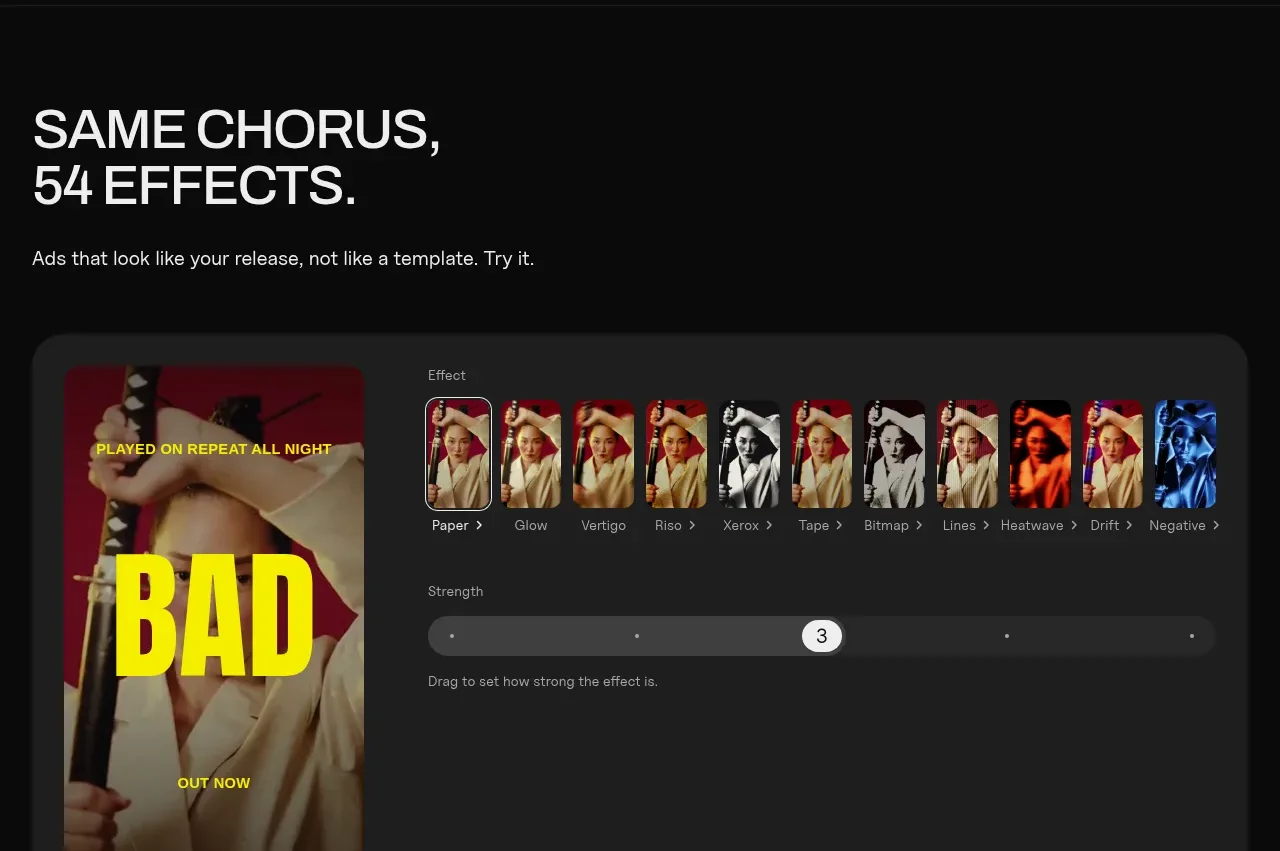 Effects and customization panel
Clips by Plastic · Feature grid
Effects and customization panel
Clips by Plastic · Feature grid