kage
kage
papermark.com
Design analysis
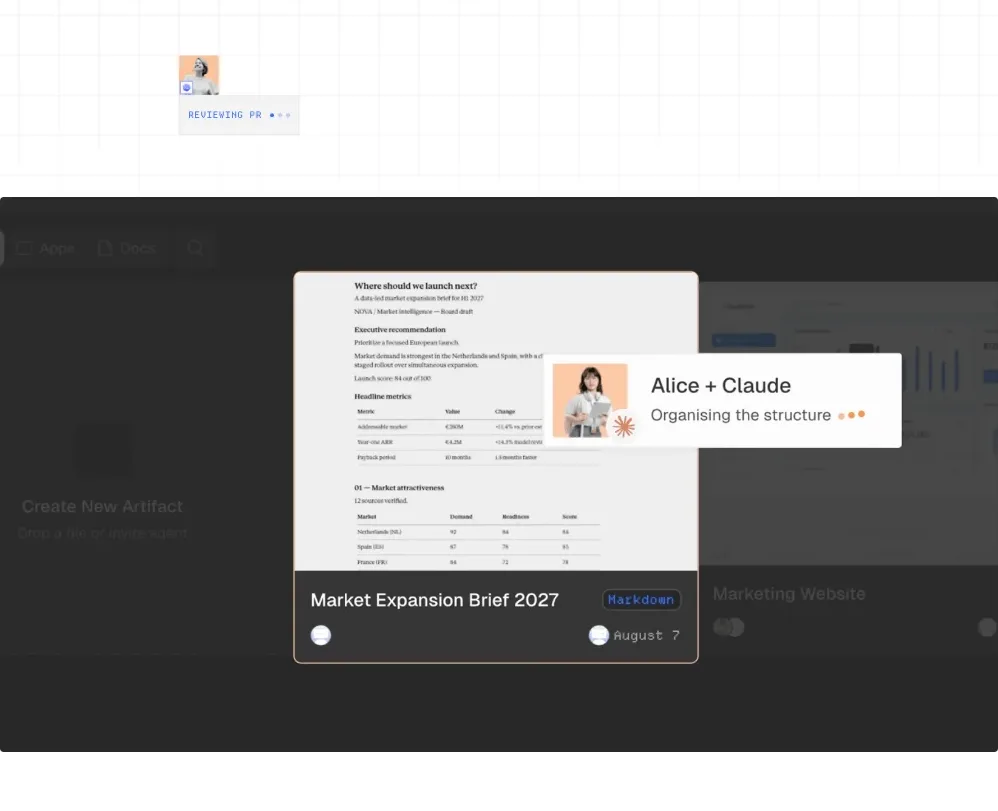
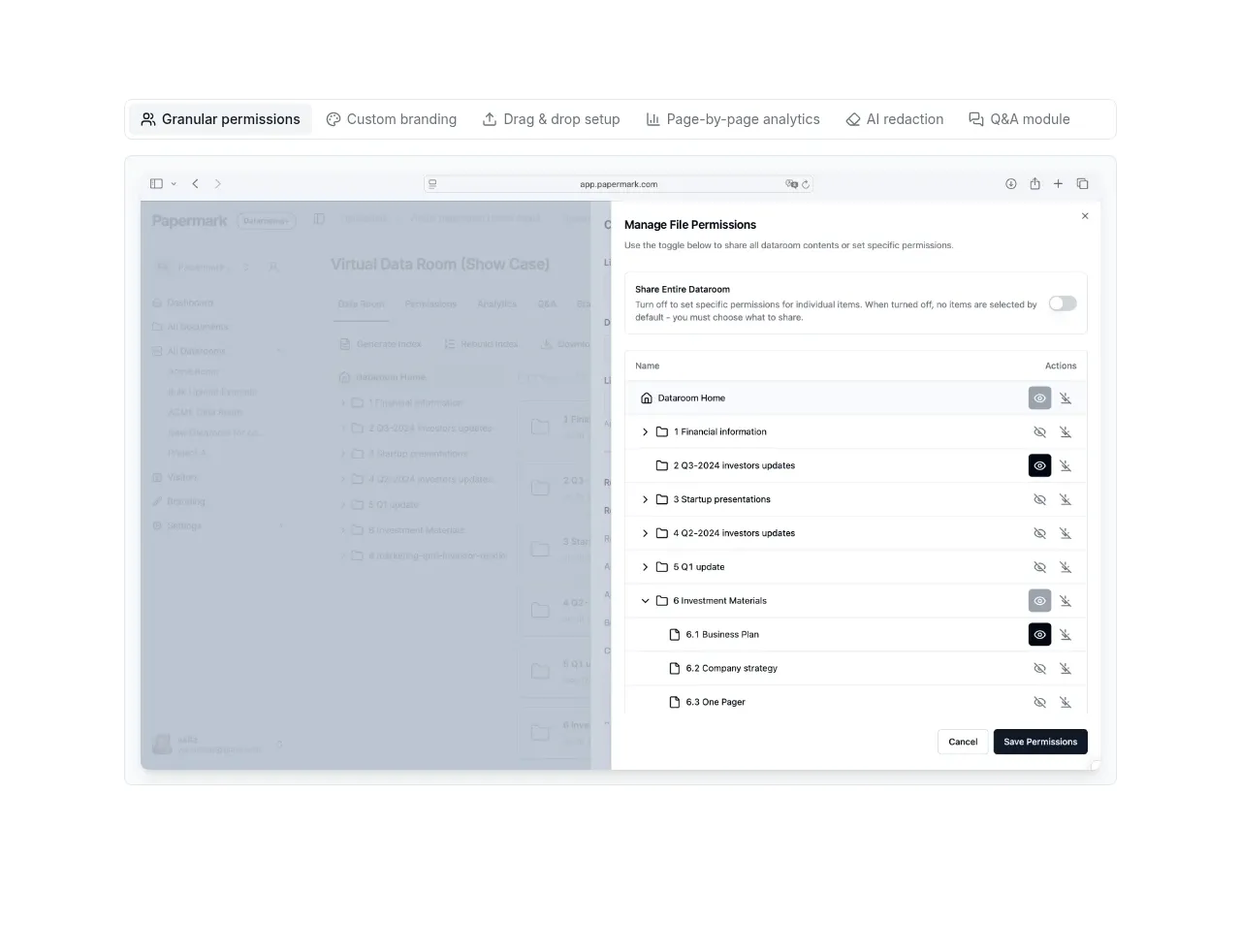
A compact feature-selector row sits above a large product screenshot, making the product tangible immediately after the hero. The screenshot is framed lightly and uses whitespace to preserve a premium, calm presentation.
Prompt preview
## Reference images

Study these alongside the description below: hierarchy, rhythm, spacing, colour. Build for the product you are asked about, using this design language.

- Component: https://kage-design-assets.t3.tigrisfiles.io/components/papermark-data-rooms/d90c2ffc-2788-45c6-a044-36fe7b171e0c-1792994577-2.webp
- Full page it was cut from: https://kage-design-assets.t3.tigrisfiles.io/screenshots/papermark-data-rooms/d90c2ffc-2788-45c6-a044-36fe7b171e0c-1792994482140-full.webp
- Component on Kage: https://kage.design/component/papermark-data-rooms-gallery

## Before you start
Ask what product interface or workflow should be demonstrated and which capability matters most to the user's audience. Apply the principles below to that product.

Build a product showcase section with a small horizontal feature selector above a large interface preview. The selector should contain 5–7 concise capability labels with subtle icons and one active state; on mobile it should scroll horizontally. Center the visual in a wide container and place it inside a pale frame with a thin border, small radius, and restrained shadow. Keep surrounding whitespace generous so the screenshot reads as a hero object rather than a dense dashboard. Use 12–13px labels, muted gray inactive states (#8A8A8A), near-black active text (#222222), and a light panel background (#F7F8F9). The visual should be responsive, cropped carefully on narrow screens, and optionally support switching the preview when a selector is clicked. Use 20–32px section padding and 12–16px internal gaps.

Never: use logos, product names, copy, illustrations, or imagery from the reference.