kage
kage
peras.vertias.eu
Design analysis
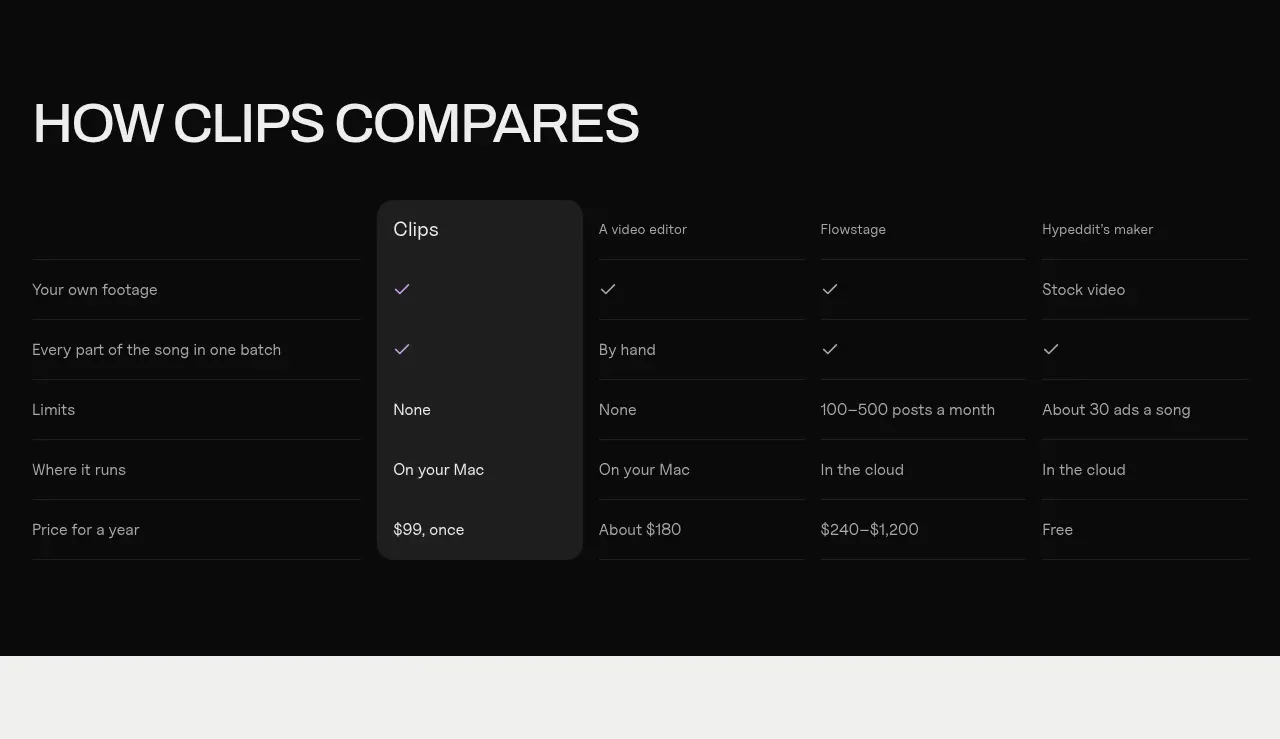
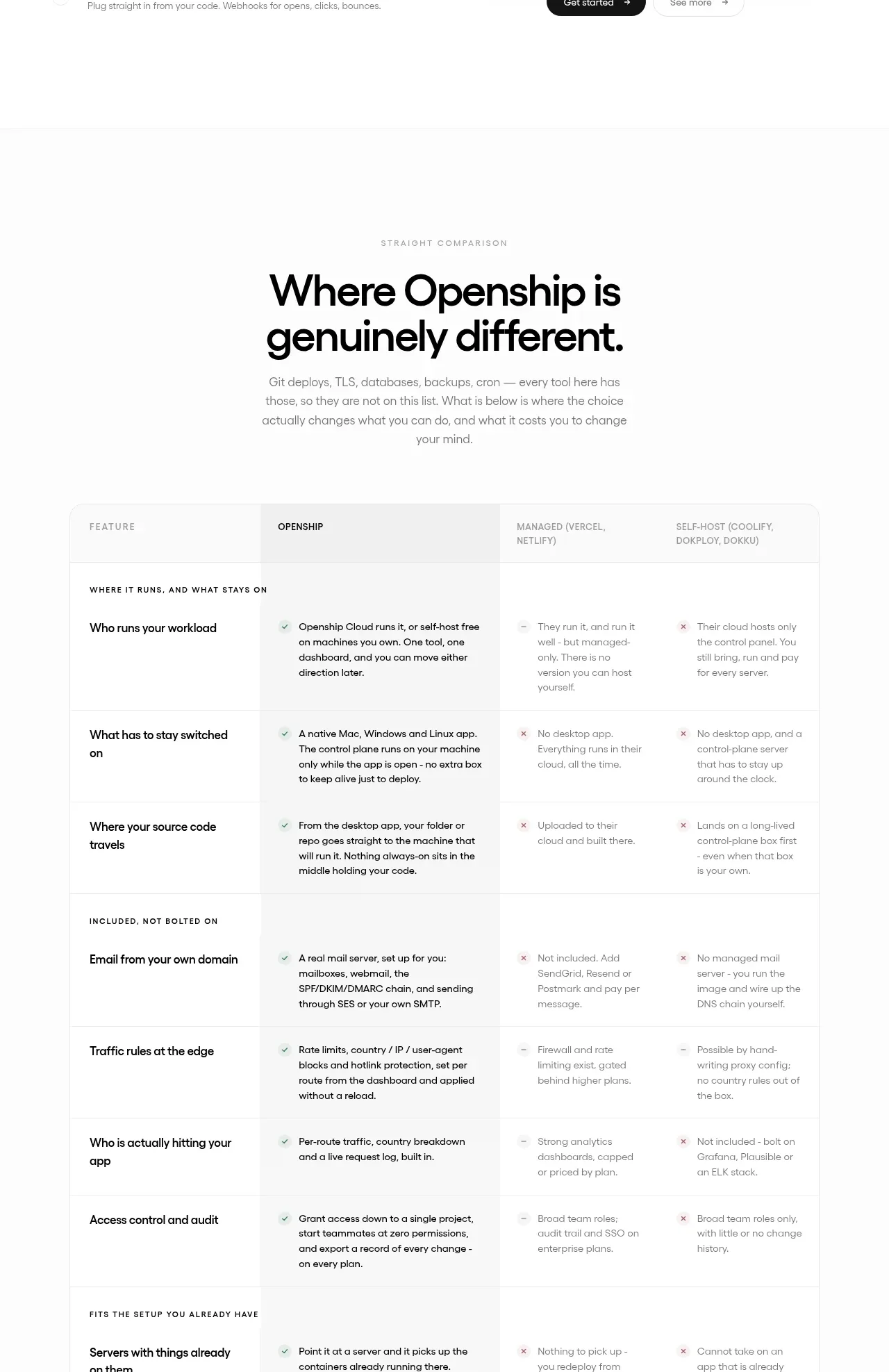
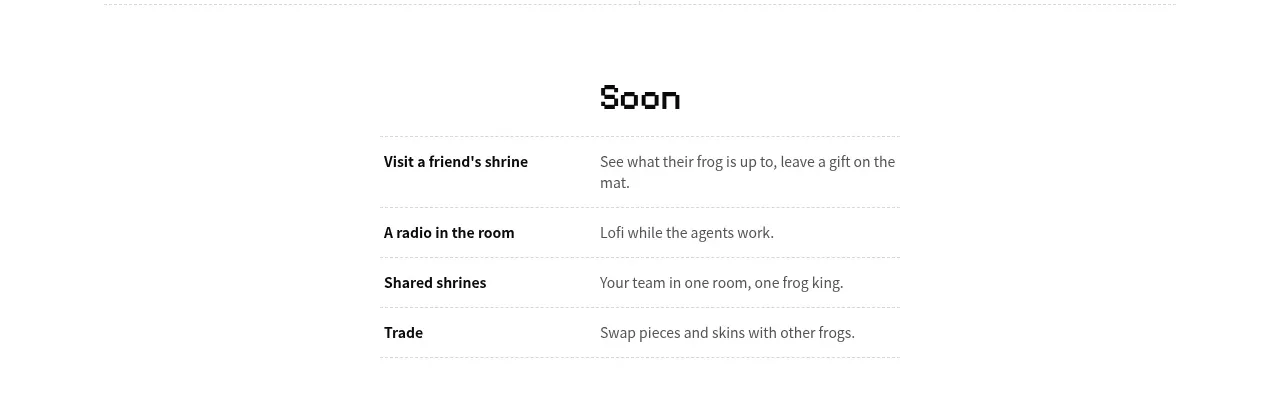
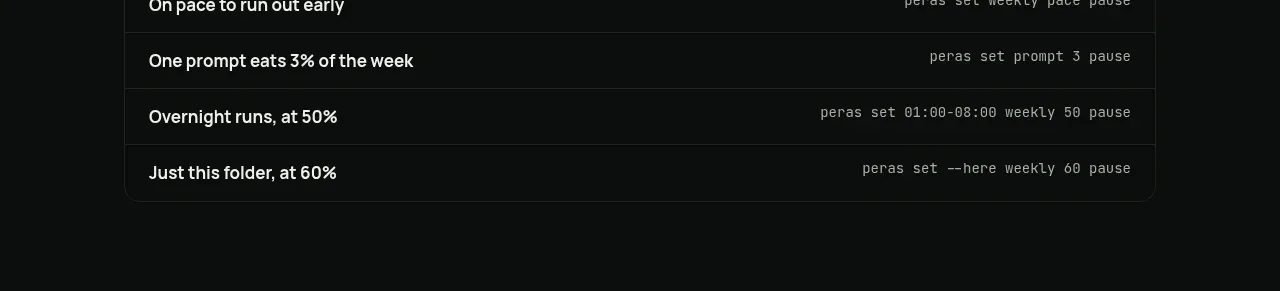
A compact two-column command table translates common user goals into practical commands, making the abstract controls immediately actionable.
Prompt preview
## Reference images

Study these alongside the description below: hierarchy, rhythm, spacing, colour. Build for the product you are asked about, using this design language.

- Component: https://kage-design-assets.t3.tigrisfiles.io/components/peras/2c988a48-c598-4fdf-86c9-23be8072f64d-1792821847-5.webp
- Full page it was cut from: https://kage-design-assets.t3.tigrisfiles.io/screenshots/peras/2c988a48-c598-4fdf-86c9-23be8072f64d-1792821751917-full.webp
- Component on Kage: https://kage.design/component/peras-table

## Before you start
Ask what actions users commonly take with the product and what command, shortcut, or configuration corresponds to each. Build an original example table around that information.

Create a compact bordered table beneath the state cards. Each row has a plain-language action on the left and a monospace command or shortcut on the right. Use strong horizontal separators, comfortable row height, left alignment for labels, and right alignment for commands on larger screens. Keep the table visually quiet so it supports the preceding explanation. Use #080b0a background, #1d241f dividers, #eef1eb labels, #8e978f descriptions, and #adb8ad monospace commands. Add row hover highlighting and allow horizontal scrolling if necessary on mobile.

Never: copy logos, product names, copy, illustrations, or imagery from the reference.